


Anteriormente, Tails incluía herramientas para borrar archivos y espacio disponible en disco. Hemos eliminado estas herramientas en Tails 6.0 (febrero de 2024), porque creemos que no son lo suficientemente fiables en dispositivos de almacenamiento modernos, como memorias USB y unidades de estado sólido (SSD).
To better protect from data recovery, use encrypted volumes, overwrite the entire device, or disintegrate it physically.
Limitaciones de la eliminación de archivos
Véase también Wikipedia: Borrado de datos.
Eliminar un archivo no borra su contenido
Operating systems do not actually remove the content of a file when the file is deleted, even after emptying the trash or removing the file from the command line.
En su lugar, los sistemas operativos sólo marcan el espacio utilizado por el archivo eliminado como disponible para futuros archivos, porque es mucho más rápido hacerlo. Sin embargo, el contenido del archivo eliminado permanece en el dispositivo hasta que el sistema operativo reutiliza el espacio para otro archivo.
Simple data recovery tools can recover deleted files.
Other copies of the data might be stored elsewhere
Other copies of the data might exist elsewhere on the device:
Some applications, for example, office applications, store temporary backup versions of the file to be able to recover from failures.
Modern operating systems can store a journal, a history of recent changes to the file system, or snapshots, an image of the file system at a particular point in time.
Simple data recovery tools can recover these other copies.
Spare memory cells can store a hidden copy of the data
Flash memory devices, such as USB sticks and SSDs (Solid-State Drives), have spare memory cells that are used to replace broken memory cells over time. Modern hard disks also integrate small flash memories for performance and reliability.
Any data that was stored in the device can remain available in these spare cells.
These spare cells are managed directly by the device and neither the user nor the operating system can control what is stored in them.
Specialized data recovery companies can recover data from spare cells.
Mitigation techniques
Given the limitations described above, there is no perfect solution to file deletion.
To better protect from data recovery, you can use one or a combination of these mitigation techniques, depending on the sensitivity of your data and the risks.
Use Tails to avoid saving files
All the files that you use in Tails disappear automatically when you shut down, except the files that you choose to store in the Persistent Storage or other storage devices.
By making it easy to avoid saving files to storage devices in the first place, using Tails is already an important mitigation technique given the limitations of file deletion.
Encrypt your storage devices
Cuando todos los datos de tu dispositivo están encriptados, las herramientas de recuperación de datos sólo pueden recuperar los datos encriptados que son inútiles sin tu contraseña.
Para proteger mejor los archivos borrados de la recuperación de datos, puedes reformatear el dispositivo y crear otro cifrado con una contraseña diferente.
Para la compatibilidad sólo con Tails o con otro Linux, usa volúmenes cifrados con LUKS.
Para la compatibilidad con Windows o macOS, usa volúmenes cifrados con VeraCrypt.
Ten en cuenta que podrías ser forzado o engañado para dar tu contraseña.
Overwrite the entire device
Para proteger mejor los archivos borrados de la recuperación de datos, también puedes reformatear y sobrescribir todo el dispositivo con ceros.
Incluso si algunos datos pudieran recuperarse de células de memoria de repuesto, sobrescribir todo el dispositivo es especialmente importante si el dispositivo no está cifrado.
Para ello:
Abre la utilidad Discos.
Todos los dispositivos de almacenamiento actuales aparecen en el panel izquierdo.
Conecta el dispositivo que deseas reformatear y sobrescribir.
Un nuevo dispositivo aparece en la lista de dispositivos. Haz click en él.
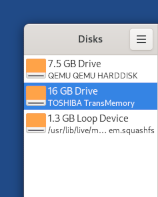
Comprueba que la marca y el tamaño del dispositivo que aparecen en el panel derecho se corresponden con tu dispositivo.
Click on the
 button in the title bar and choose Format
Disk.
button in the title bar and choose Format
Disk.En el diálogo Formatea el disco:
Choose Overwrite existing data with zeroes (Slow) in the Erase menu.
Overwriting existing data does not erase all data on flash memories, such as USB sticks and SSDs (Solid-State Drives).
See the limitations of file deletion.
Choose Compatible with all systems and devices (MBR/DOS) in the Partitioning menu.
Click Format.
In the confirmation dialog, make sure that the device is correct.
Click Format to confirm.
Physically destroy the device
As a last resort, physically destroying the device gives the strongest guarantee against data recovery.
It is unreliable to break the device into a few pieces or burn it with wood fire.
For top secret documents, the National Security Agency (NSA) of the USA recommends disintegration into particles of 2 mm. This can be achieved using a good quality household blender.